 IntuneBrew
Update rings
Roll out new app versions to pilot groups first, then to everyone, using Entra security groups.
An update ring is a named set of Entra groups, such as Pilot or Broad, with an assignment type. When you publish a new version to a ring, only that ring's groups receive it, and the previous version stays assigned to everyone else until you promote.
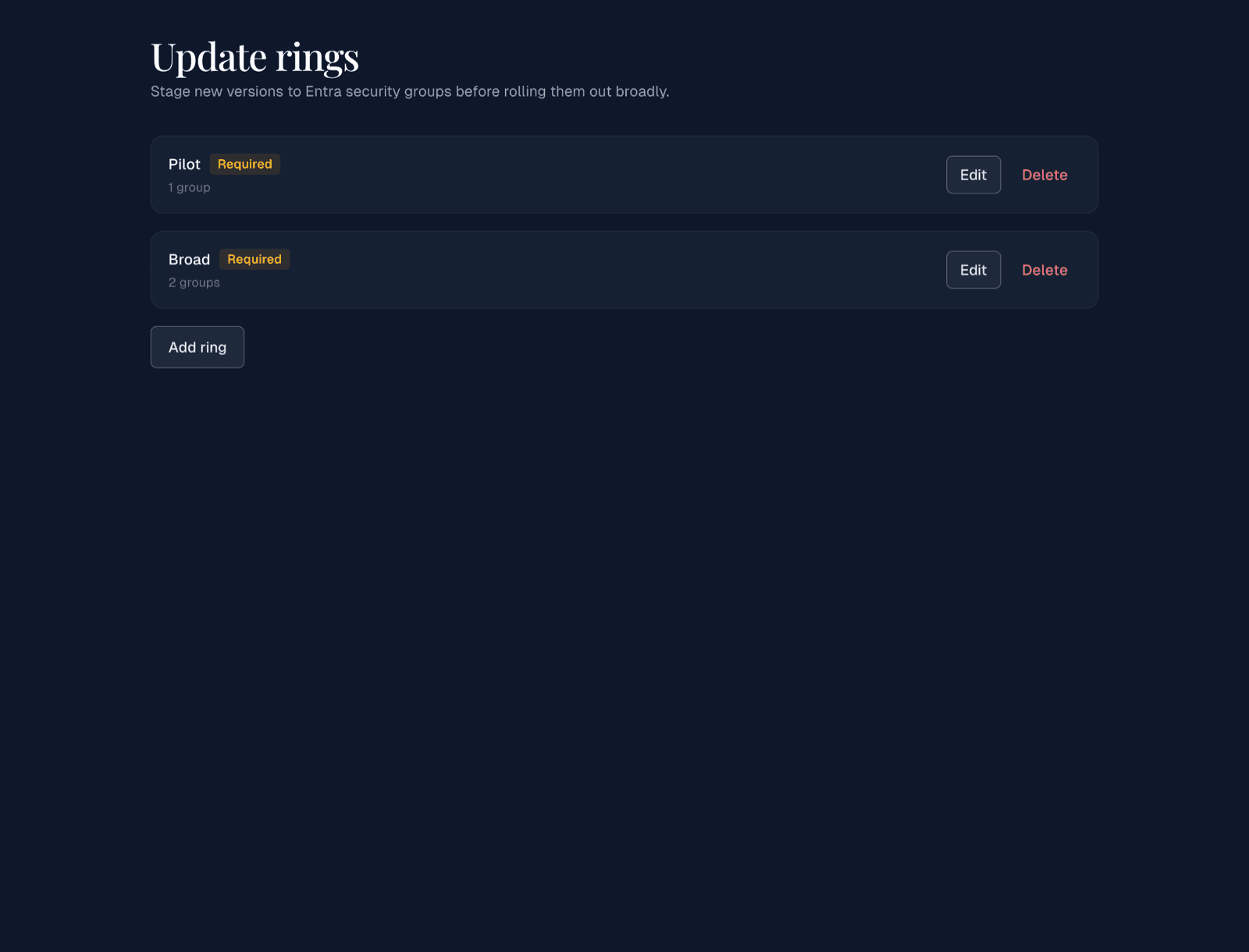
Create a ring
- Open Update rings in the sidebar and select Add ring.
- Enter a Ring name, for example Canary.
- Choose the Assignment intent:
- Required install installs the app automatically. Works with device and user groups.
- Available in Company Portal lets users install it themselves. Reaches users, not devices.
- Search for Entra groups by name and tick them, or paste a group ID under Or add a group ID manually.
- Select Save ring.
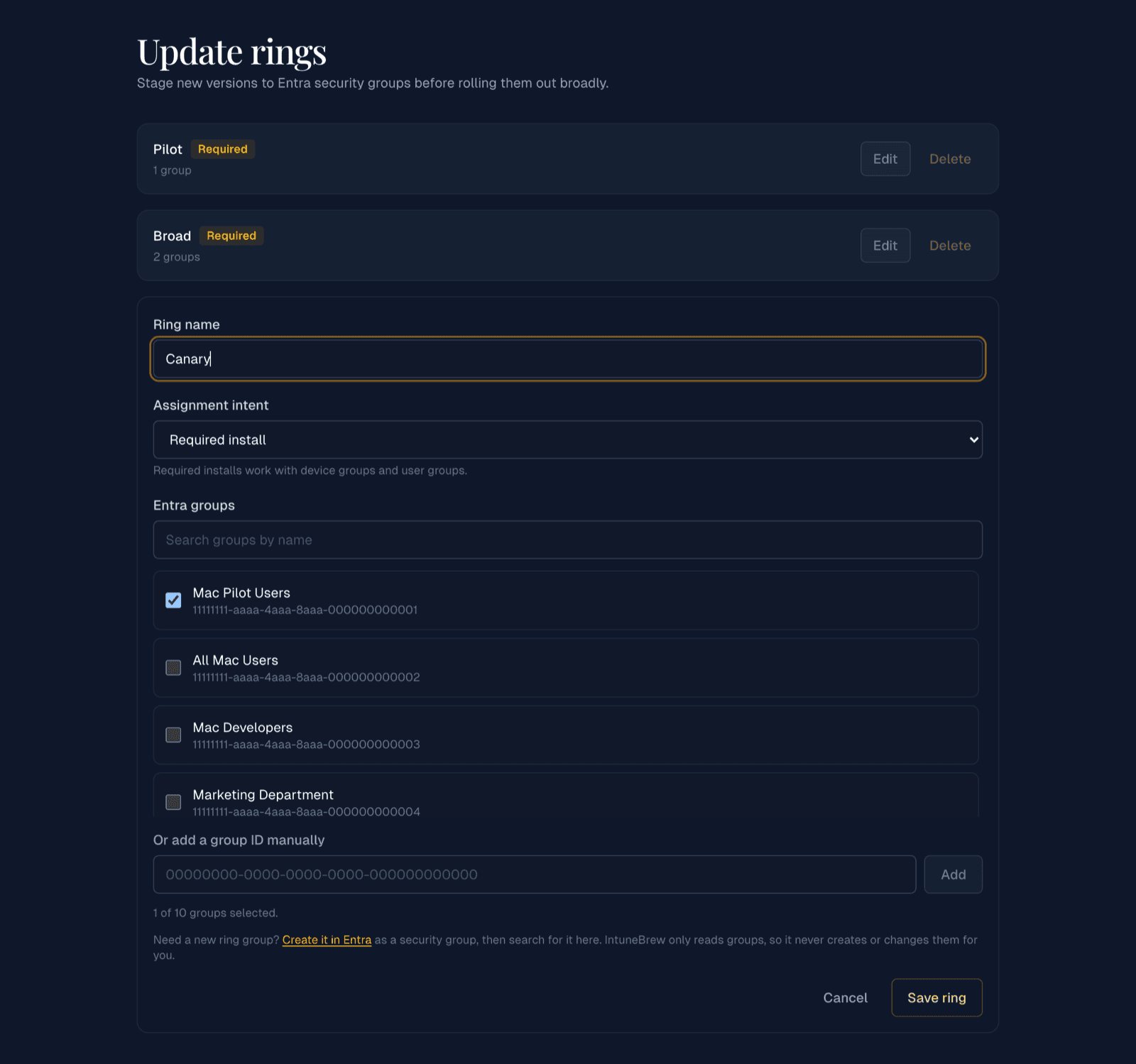
- A tenant can have up to 10 rings, each with up to 10 groups.
- IntuneBrew only reads groups. Create new groups in Entra first; the editor links to it.
- Rings are shared by the whole team. Owners and administrators can change them.
Publish to a ring
You can publish to a ring from several places:
- Updates: the arrow next to Update → Publish to ring…
- Deploy apps: To ring… on an app's card
- Dashboard and Vulnerabilities: Deploy to ring…
Choose the ring and intent, check the review, and publish.
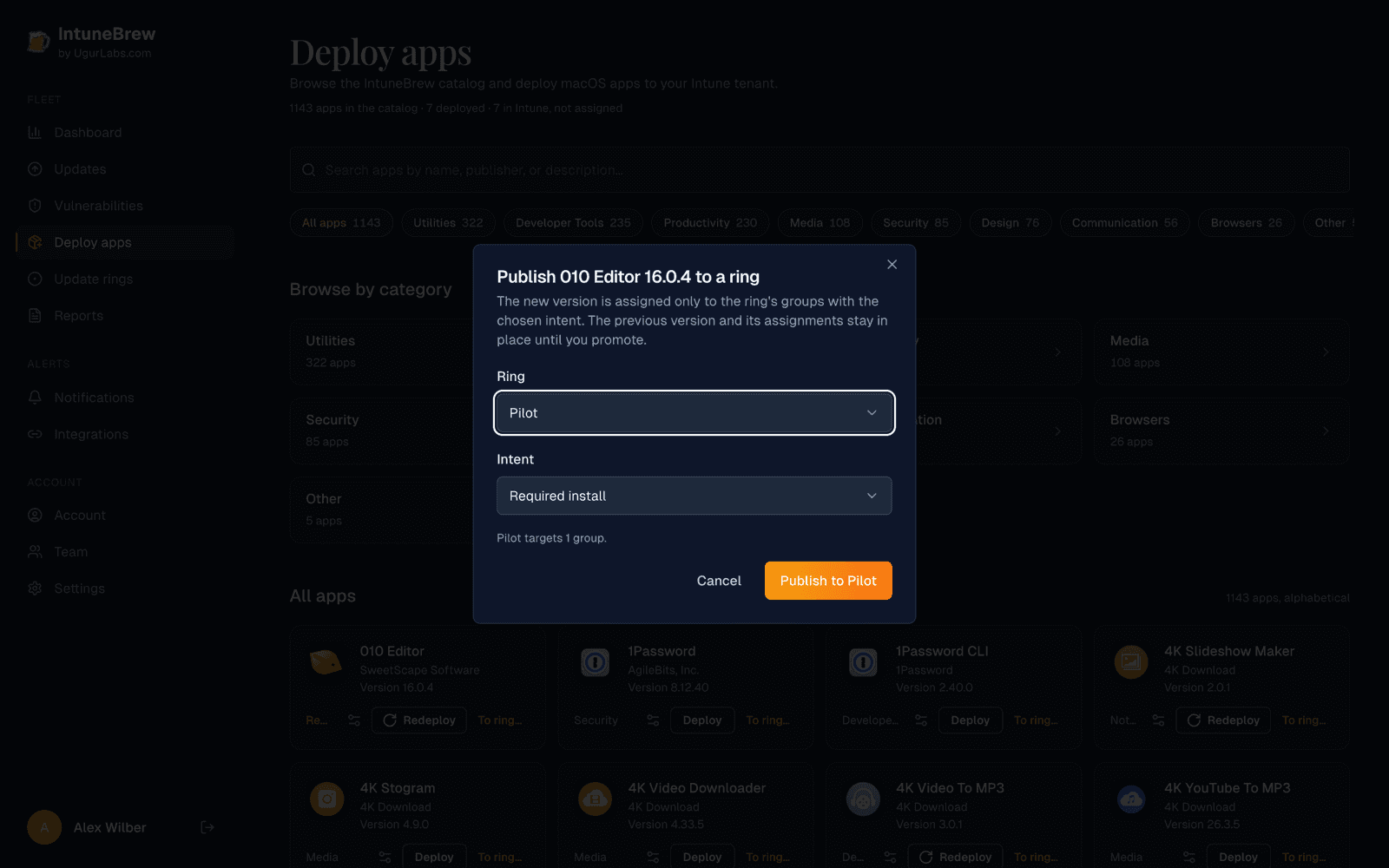
A ring publish never carries over or deletes anything: the new version is assigned only to the ring's groups, and the previous version keeps its assignments.
Promote to the next ring
When the pilot looks good, open the arrow next to the updated app on the Updates page and select Promote assignments…. Choose the next ring and intent; its groups are added to the new version and existing assignments stay. Then move or remove the previous version's assignments in Intune, or publish a normal update with carry-over.
Combine rings with holds
A hold of a few days keeps brand-new versions away until they have settled; a ring then limits who gets them first.