 IntuneBrew
App catalog
Which apps IntuneBrew supports, how the catalog stays current, how to request a new app, and how to uninstall apps.
The IntuneBrew catalog has more than 1,100 macOS apps that are ready to upload to Intune. It's built from Homebrew cask data and is the same for the web portal and the PowerShell tool.
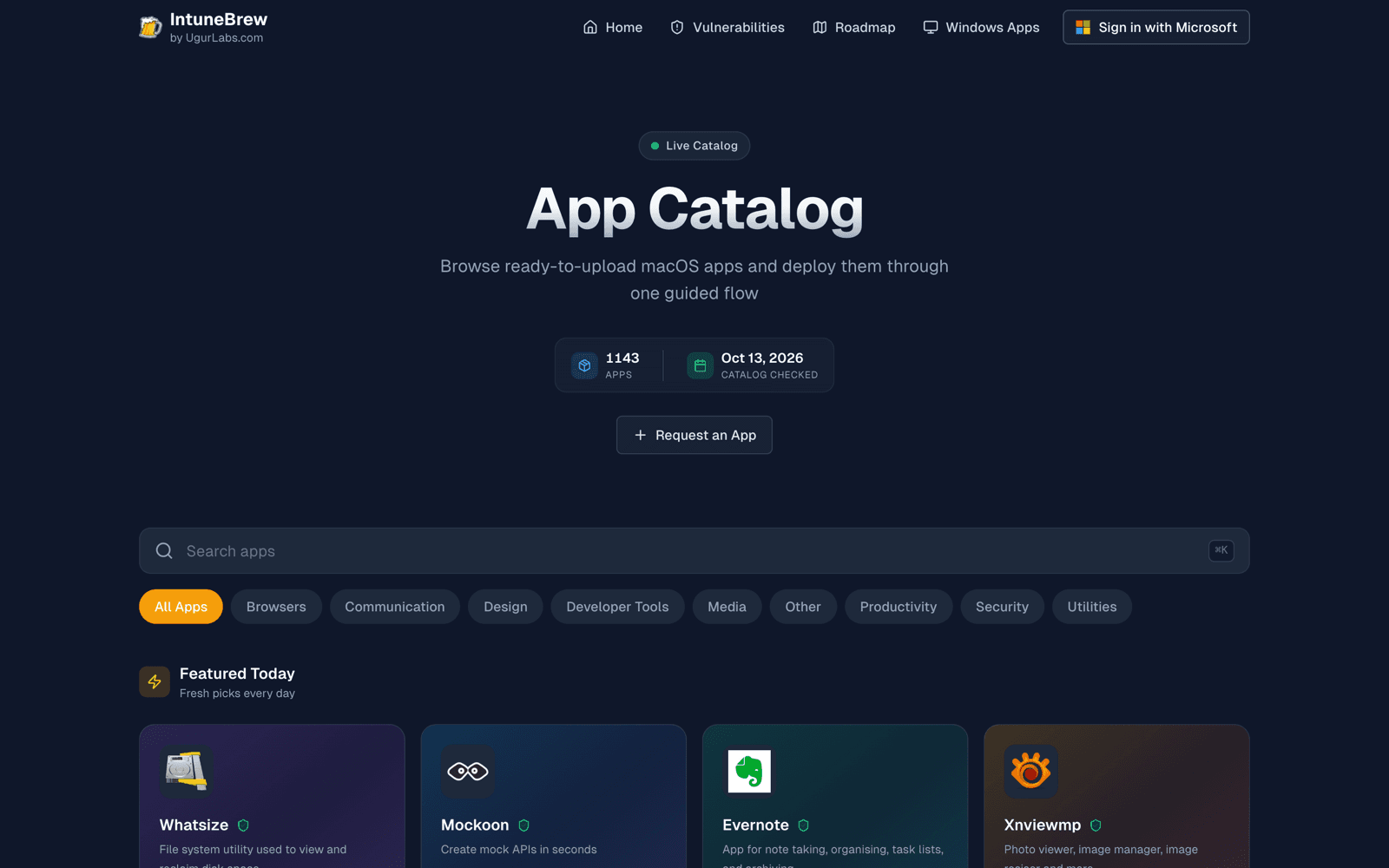
Browse the catalog
Open the App Catalog to search apps (press ⌘K or /), filter by category, and open an app's page with its version, publisher, bundle ID and release notes.
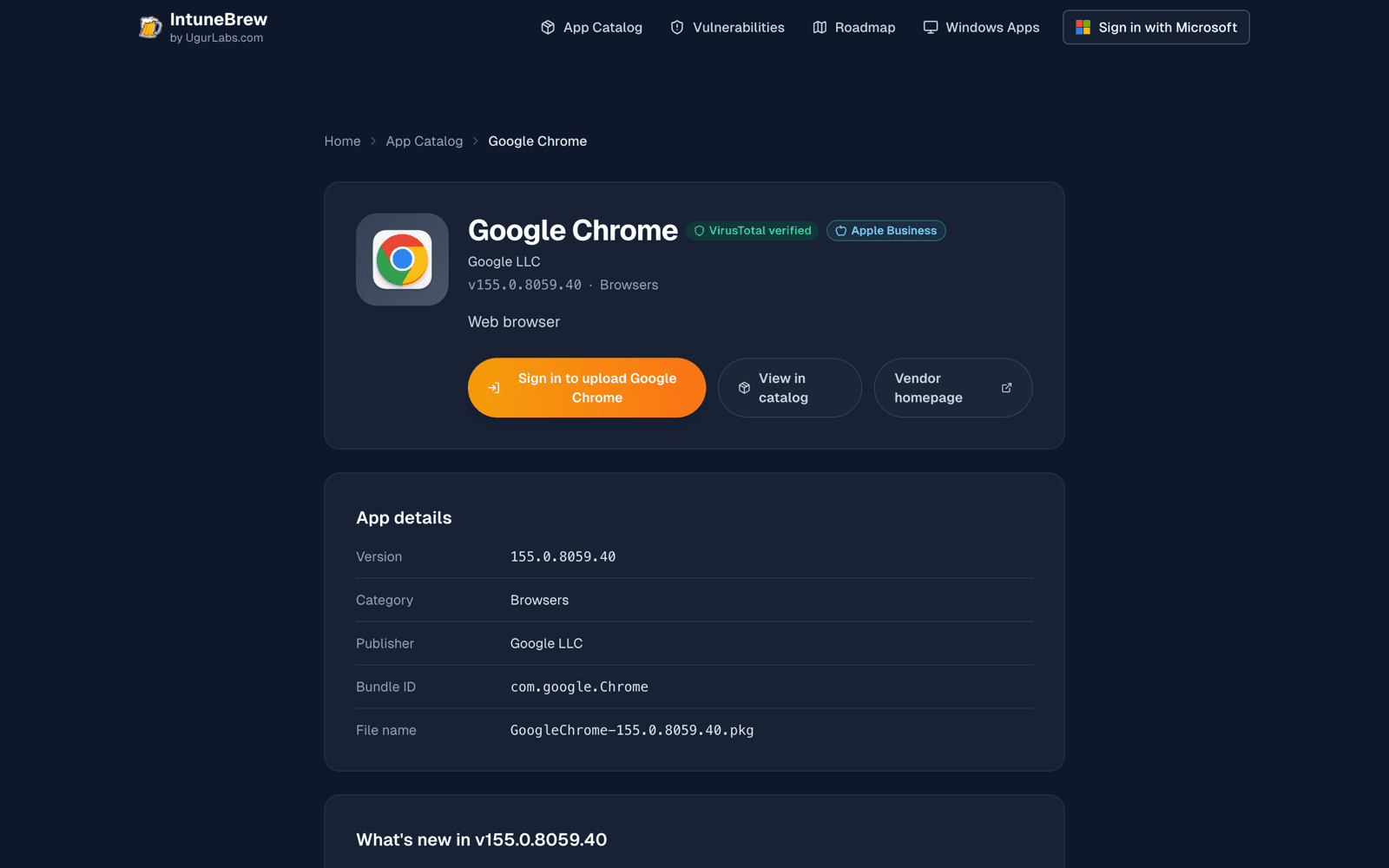
- A shield icon means the installer was verified on VirusTotal.
- A severity warning links to the app's known vulnerabilities.
- Apple Business shows the package details you need to distribute the app through Apple Business Manager instead.
Developers can read the catalog through the public API.
How the catalog stays current
- New versions are collected daily. Installers come from the vendor's own download; DMG or ZIP downloads are repackaged as PKG when needed. The catalog page shows when it was last checked.
- Each app's installer is for Apple silicon, Intel, or both (universal), depending on what the vendor ships.
- Vulnerability data is refreshed daily at 6:00 UTC.
Request an app
- Find the app's Homebrew cask name on formulae.brew.sh.
- Open Submit an App Request and enter the cask name, its Homebrew URL, or the
brew installcommand. - Select Submit App Request.
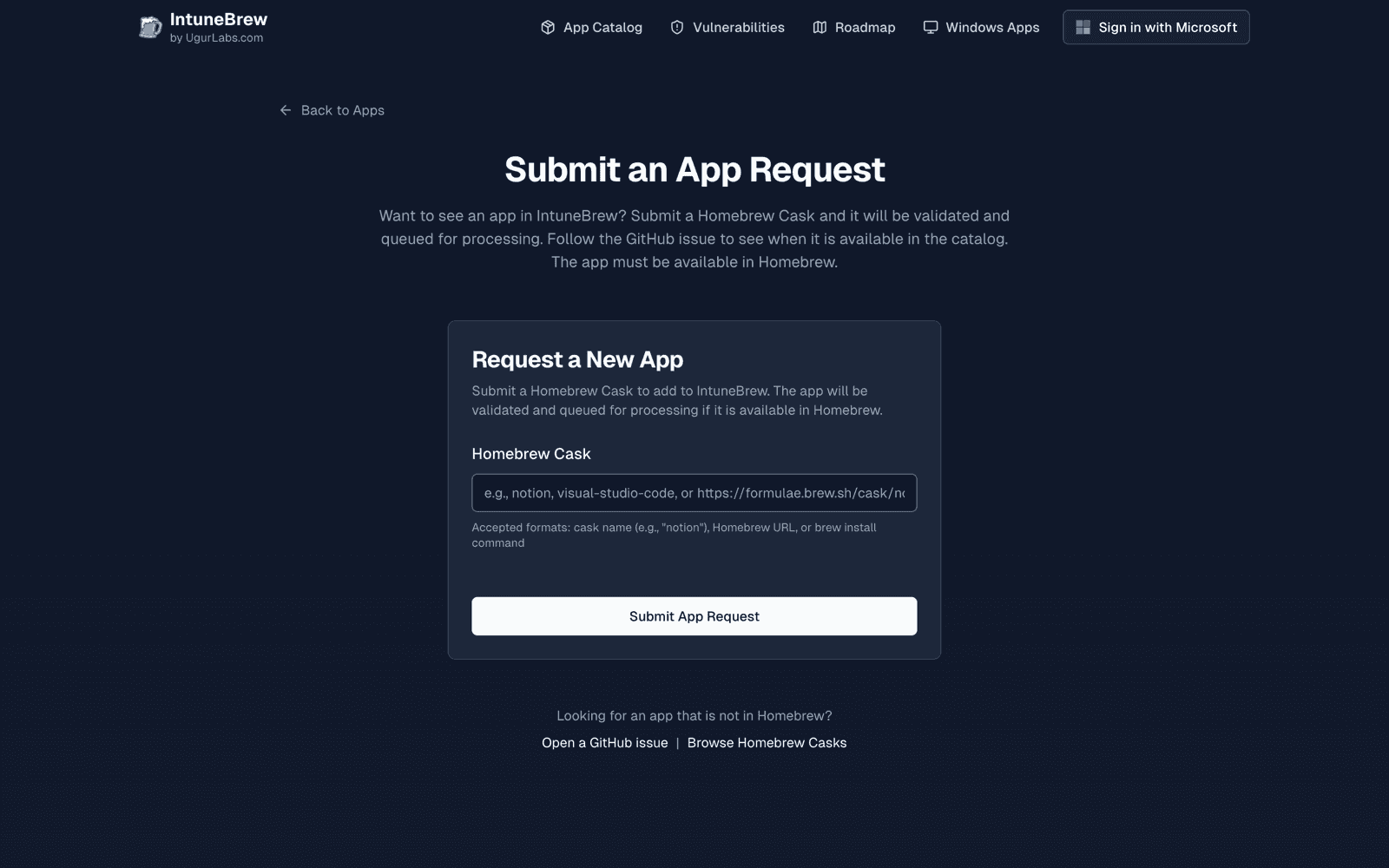
IntuneBrew checks the cask, tells you if the app is already in the catalog, and otherwise opens a GitHub issue you can follow. Requests are reviewed before the app is added. You can submit up to 5 requests per hour. You can also open an issue on GitHub directly.
Apps that can't be added
Some apps are kept out of the catalog, for example because their download links expire, the download is only a bootstrapper, or the installer requires accepting a license. IntuneBrew never accepts licenses on your behalf. The current list and reasons are in EXCLUDED_APPS.md.
When Homebrew removes an app, it stays in IntuneBrew's history but is no longer offered.
Uninstall apps
Intune can't uninstall PKG apps from Macs. The IntuneBrew repository has an uninstall script for most catalog apps in Uninstall Scripts. Each script quits the app, unloads its background items, and removes the app and its data.
To use one, add it in the Intune admin center under Devices → macOS → Scripts → Add, set Run script as signed-in user to No so it runs as root, and assign it to the Macs to clean up. Test it on one Mac first.