 IntuneBrew
Update apps
See which of your Intune apps have newer versions, review the change, and publish updates one by one or in bulk.
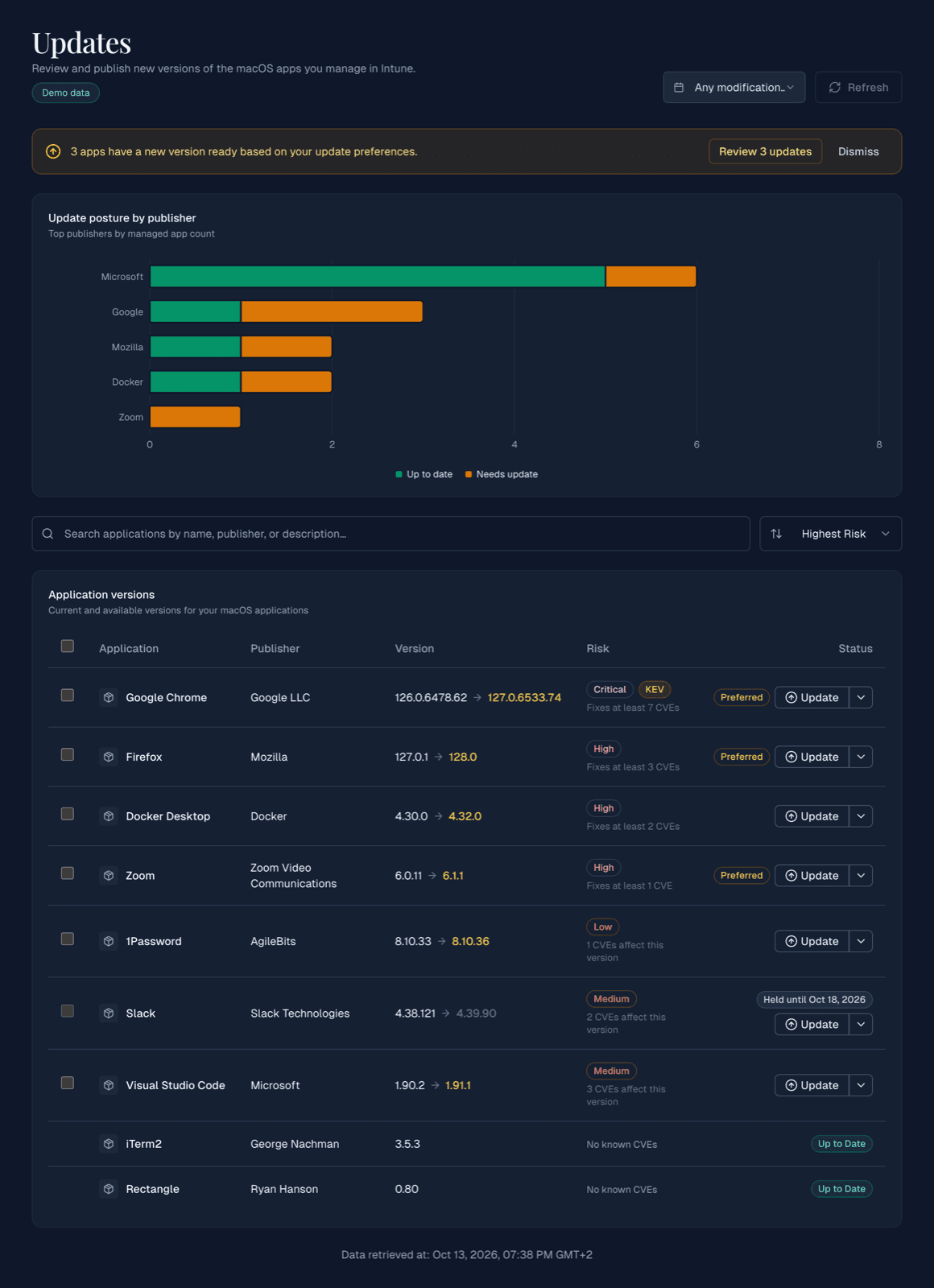
The Updates page compares every macOS app in your Intune tenant with the IntuneBrew catalog and shows which ones have a newer version, how risky the installed version is, and what publishing would change.
Reading the list
| Column | Shows |
|---|---|
| Version | The version in Intune → the newest catalog version |
| Risk | The worst known vulnerability in the installed version, KEV if one is actively exploited, and how many the update fixes |
| Status | Update if a newer version exists, Up to Date, Held until a date, or Not in catalog |
Only PKG and DMG apps that match a catalog app by name or bundle ID can be updated. Sort by Highest Risk (the default) to work through the most urgent updates first, and use the date filter to focus on recently changed apps.
Viewers see Update available instead of the button. See Team access.
Publish one update
- Select Update next to the app.
- Check the Review Tenant Change dialog. It shows exactly what will happen: the version change, whether assignments are carried over and to which groups, whether the previous version will be deleted, and which scope tags are applied.
- Select Publish version x.
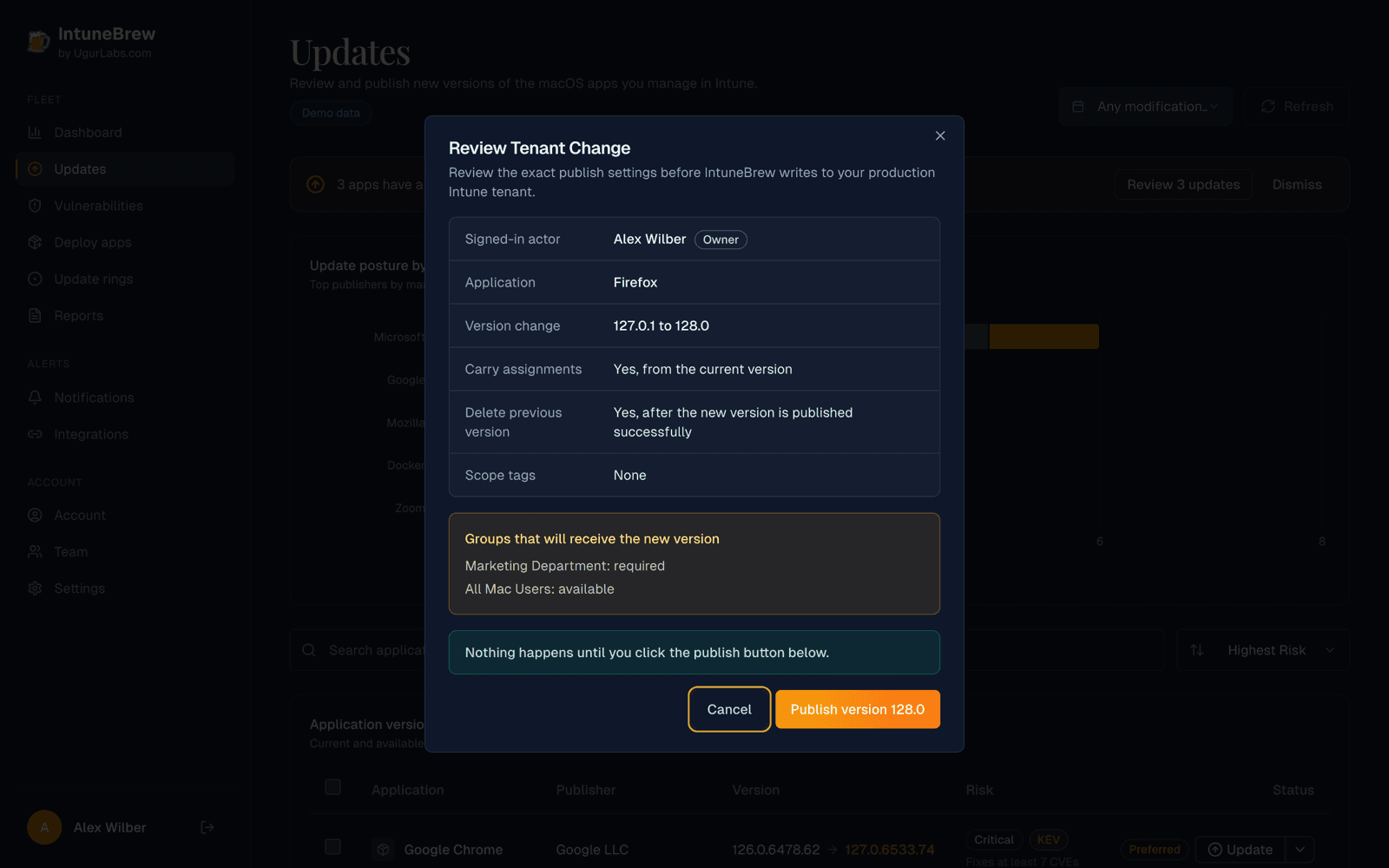
Nothing changes in Intune until you publish. Progress then appears in the same upload window as a first deployment.
Update button options
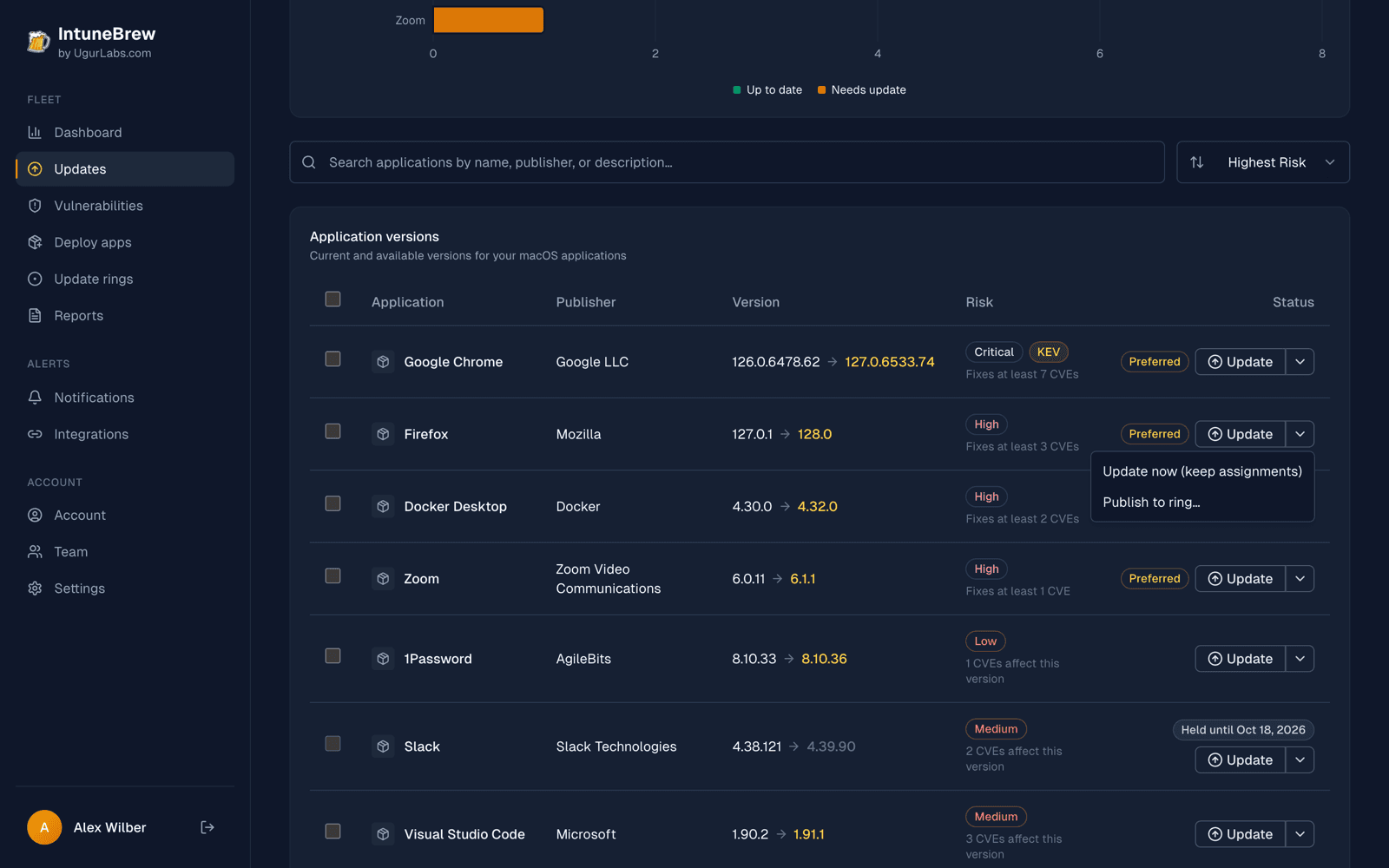
The arrow next to Update offers two more choices:
- Update now (keep assignments) carries the previous version's assignments over, whatever your setting says.
- Publish to ring… assigns the new version only to an update ring and leaves the previous version in place.
Publish several updates
Tick the apps you want, select Update selected, decide whether to Keep assignments, and confirm.
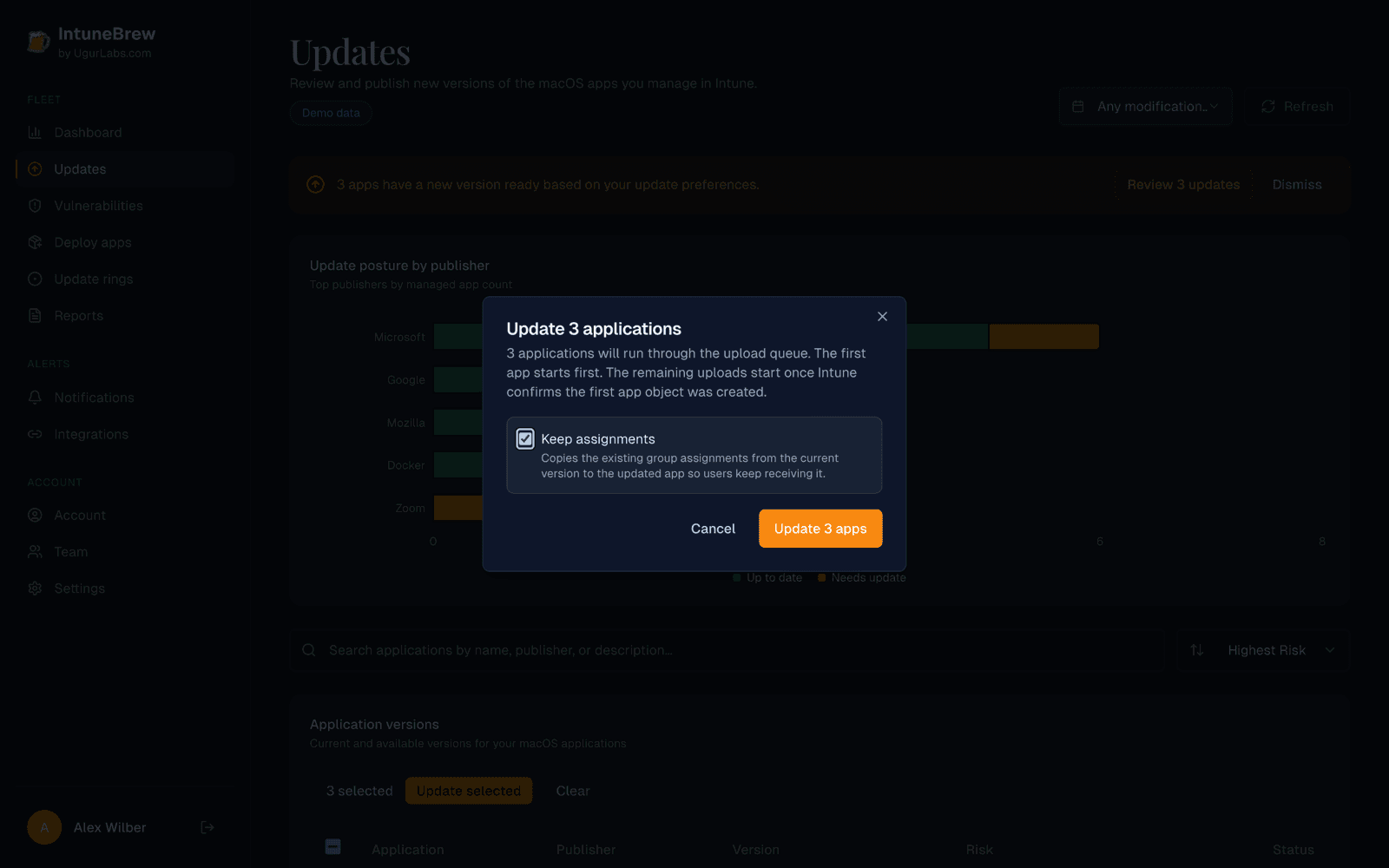
The first app starts on its own. The rest start once Intune confirms the first app was created, then run a few at a time. If the first app can't be created, the batch stops before the others are sent.
What happens to the previous version
Each update creates a new app in Intune next to the previous version. Two settings decide what happens next:
- Preserve assignments when updating apps moves the previous version's group assignments to the new one. See Carry over assignments.
- Remove previous versions after updating deletes older copies once the update succeeded.
Both are off by default and set per person in Settings.
Per-app update policy
Select an app's name to open its details. Under Update policy:
- Offer one-click updates for this app marks the app as Preferred. When one or more preferred apps have a new version, a banner offers Review n updates.
- Hold new versions for 3, 7, 14 or 30 days. A version IntuneBrew has just discovered is shown as Held until that date, so brand-new releases get time to settle. You can still publish a held version; the review warns that this overrides the hold.
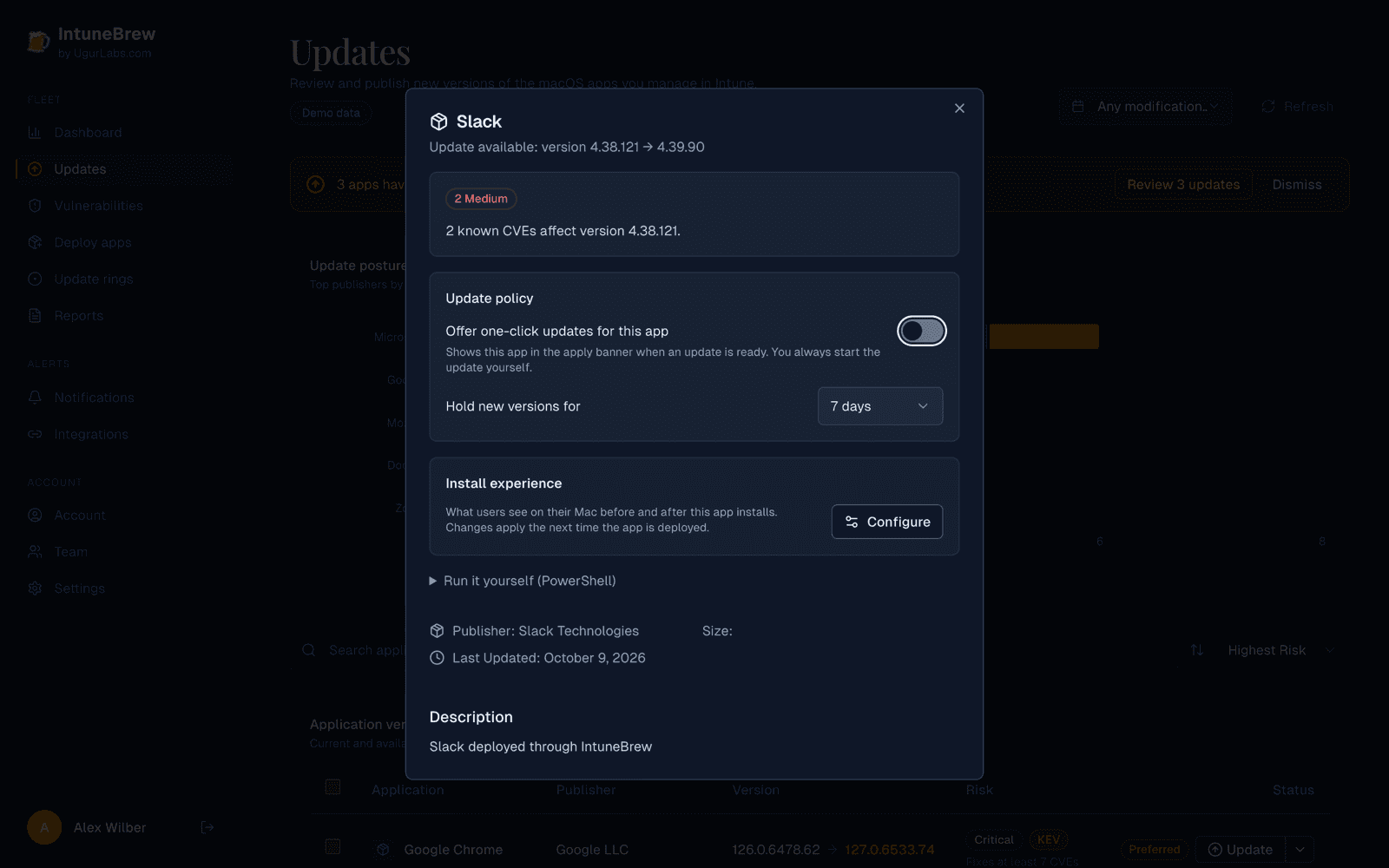
Policies apply to the whole team. Changing them requires the owner or administrator role.
The banner starts updates right away
Review n updates in the banner starts all listed updates immediately, using your saved settings, without the review dialog. To review each change first, use the Update button on each row instead. Nothing is ever published automatically; someone always has to start it.
Promote after a ring
After a ring publish in the current session, the arrow next to the app offers Promote assignments…. Pick the next ring and intent to add its groups to the new version. Existing assignments are kept.