 IntuneBrew
Settings
Choose what happens to assignments and previous versions when you update apps, which scope tags to apply, and install experience defaults.
Settings are personal: they apply to the uploads and updates you start, not to the whole team. Viewers can see them but not change them. Select Save Changes when you're done.
App updates
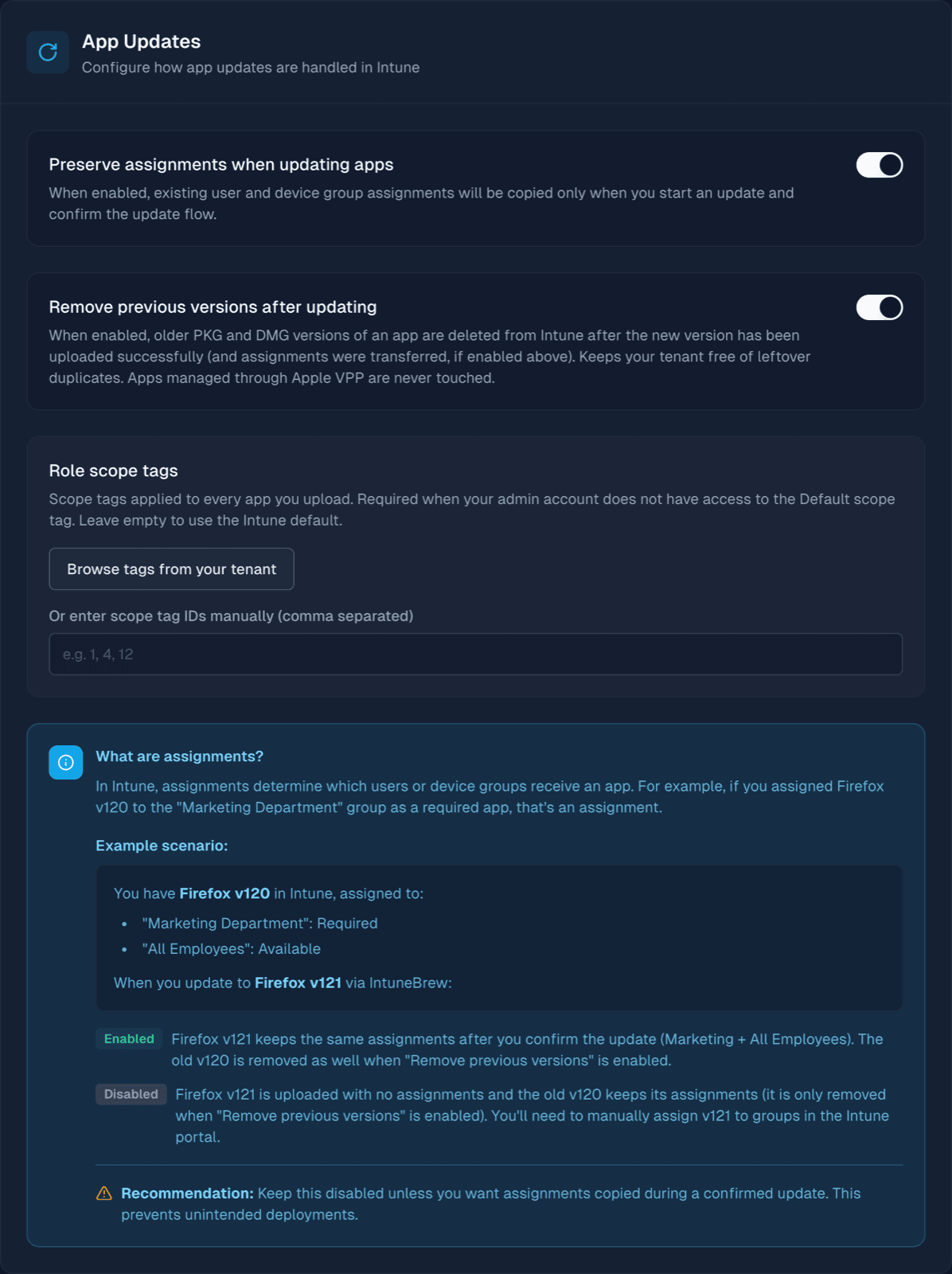
| Setting | Default | What it does |
|---|---|---|
| Preserve assignments when updating apps | Off | Moves the previous version's group assignments to the new version when you confirm an update. See Carry over assignments. |
| Remove previous versions after updating | Off | Deletes older PKG and DMG copies of the app from Intune after an update succeeds. Apple VPP apps are never touched. |
Turn on both, or neither
With Remove previous versions on and Preserve assignments off, an update deletes older copies even if they're still assigned. See Removing previous versions.
Role scope tags
If you use Intune scope tags, set the tags IntuneBrew should apply to every app you upload. This is required when your account can't use the Default scope tag, or new apps won't be visible to you.
- Browse tags from your tenant lists your scope tags. The first time, it asks for the read-only permission
DeviceManagementRBAC.Read.All. - Or enter the tag IDs, separated by commas.
Install experience defaults
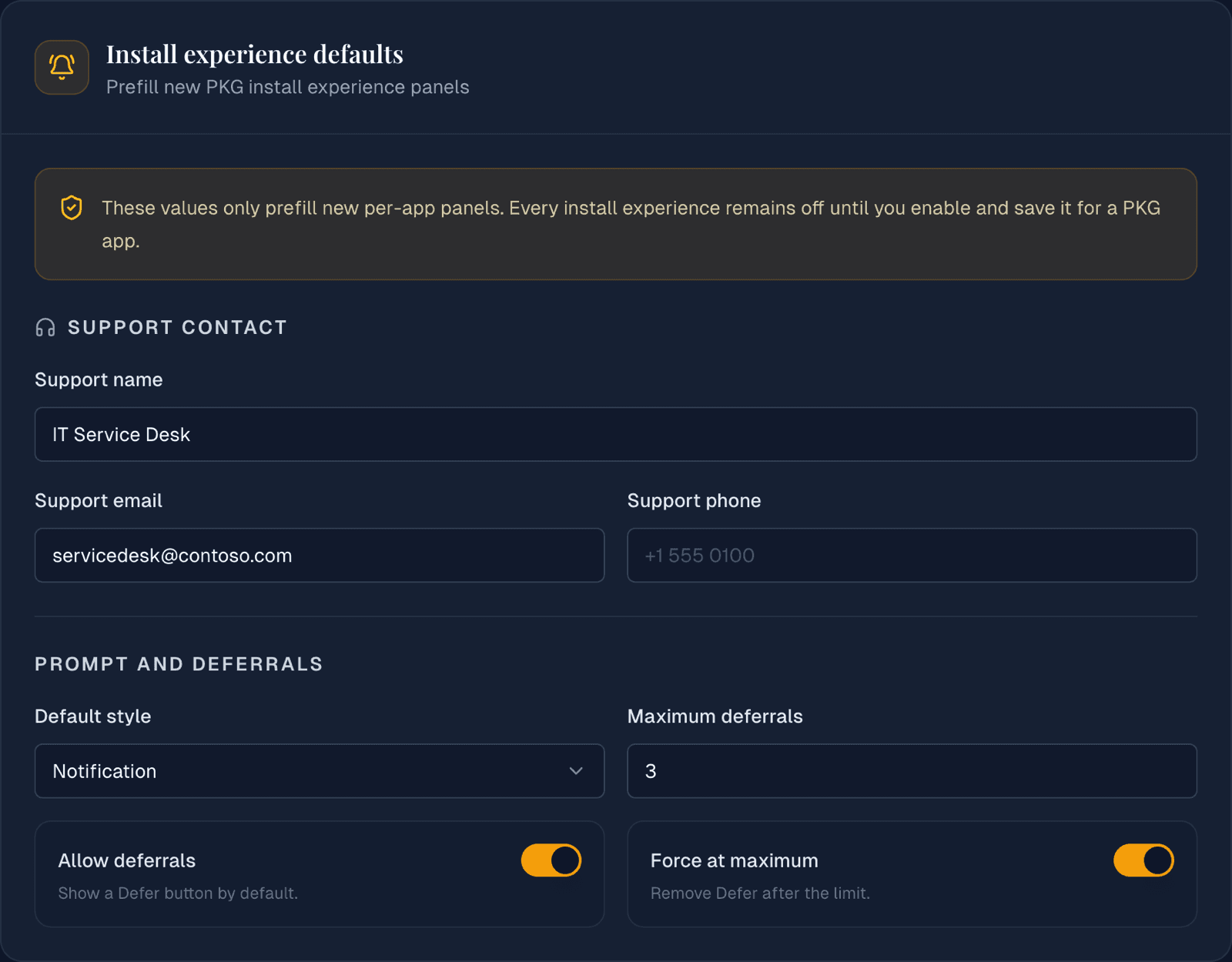
These values pre-fill the install experience panel when you set one up for a PKG app. They don't turn anything on by themselves.
| Setting | Default |
|---|---|
| Support name, email, phone | Empty |
| Default style | Notification |
| Allow deferrals | Off |
| Maximum deferrals | 3 |
| Force at maximum | On |