 IntuneBrew
Team access and roles
Who can change what in the IntuneBrew portal, how colleagues join, and how to recover when no owner can sign in.
Everyone in your organization signs in to the IntuneBrew portal with their own Microsoft Entra account. Everyone from the same Entra tenant sees the same Intune data and shares the same IntuneBrew settings: update policies, rings, notifications and install experience. Roles decide who can change those shared settings.
Roles
| Role | Can see everything | Publish updates, edit policies and rings | Manage the team |
|---|---|---|---|
| Owner | Yes | Yes | Yes |
| Administrator | Yes | Yes | No |
| Viewer | Yes | No | No |
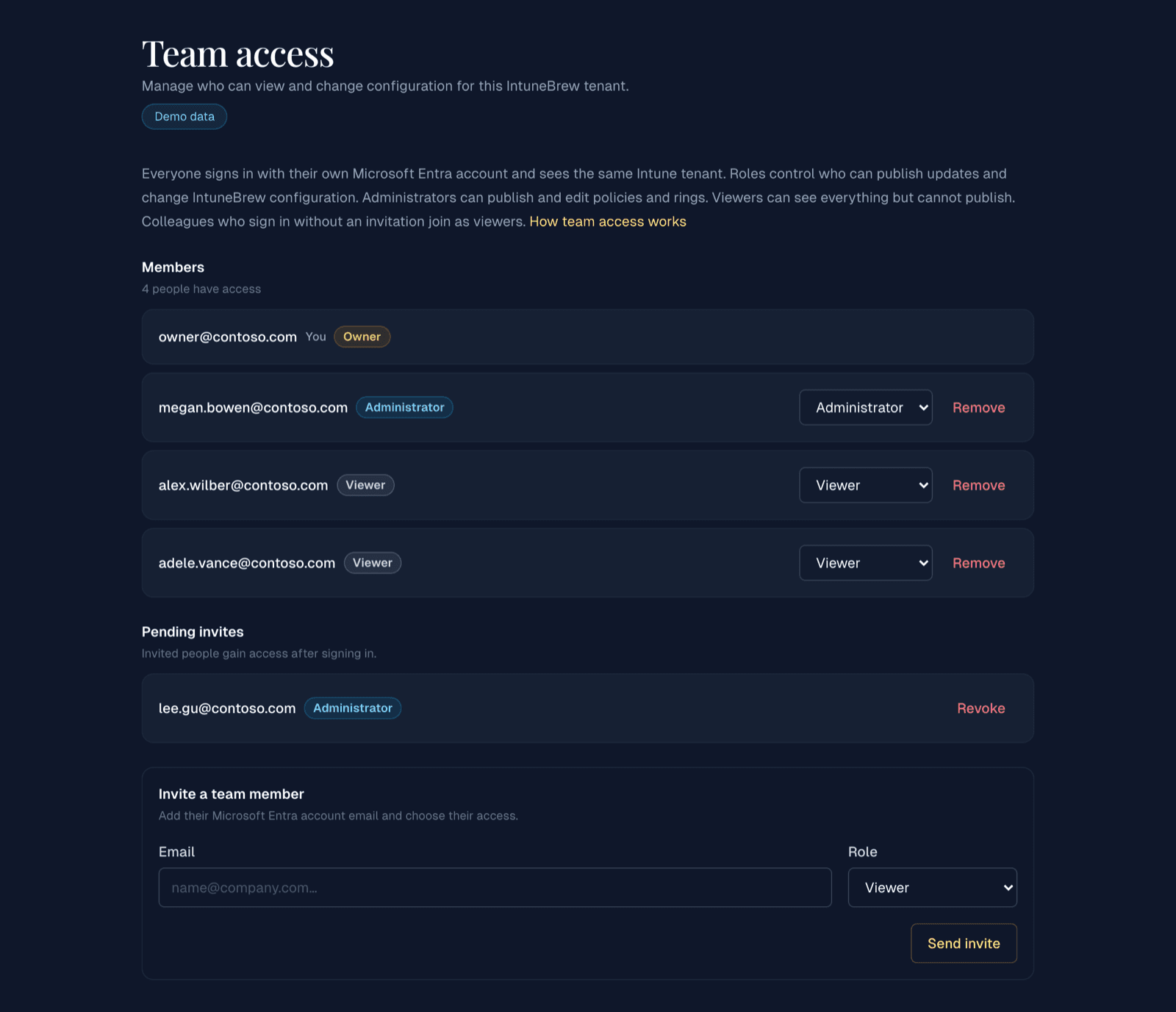
Owners change roles, send invites and remove members under My Account → Team. A tenant can have more than one owner, and that is recommended so the team never depends on one person.
How people join
- The first person from your tenant to sign in becomes the owner.
- Invited colleagues get the role they were invited with the first time they sign in. Owners invite people from the Team page with their work email address.
- Everyone else from your tenant joins as a viewer. An owner can promote them at any time.
Entra app assignment does not set IntuneBrew roles
If you require user assignment on the IntuneBrew Enterprise Application in Entra, assigning someone there only lets them sign in. Their IntuneBrew role is still set by an owner on the Team page.
Viewers see who the owners are on the Team page, so they know whom to ask for access.
Removing someone
When an owner removes a member, that person loses access on their next request and is not added back automatically when they sign in again. Inviting them again restores their access. The last owner cannot be removed or demoted.
When no owner can sign in
If every owner has left or cannot sign in, a Global Administrator or Intune Administrator in Microsoft Entra can claim ownership:
- Sign in to the portal and open My Account → Team.
- Under Need to change something?, select Claim ownership and confirm.
Claiming ownership adds you as an owner. Existing owners keep their access and receive an email saying who claimed ownership and through which Entra role. Every claim is also recorded in the IntuneBrew audit log. Someone an owner removed from the team cannot claim ownership; they need a new invite.
Using Privileged Identity Management (PIM)?
Only active roles count. Activate your Global Administrator or Intune Administrator role first, then select check again on the Team page so IntuneBrew picks up the newly activated role.
These roles already have full control of Intune itself, so claiming IntuneBrew ownership gives them nothing they could not already do in Intune directly.
Permissions IntuneBrew asks for
The full list is on Permissions.
At sign-in, IntuneBrew asks for permission to sign you in and for two Microsoft Graph permissions:
DeviceManagementApps.ReadWrite.Allto publish and update apps in IntuneGroup.Read.Allto assign apps to groups
Some features ask for one more read-only permission the first time you open them, so people who never use those features are never asked:
| Feature | Permission |
|---|---|
| Scope tags on deployments | DeviceManagementRBAC.Read.All |
| Fleet dashboard and vulnerability exposure | DeviceManagementManagedDevices.Read.All |
A consent screen that lists only the sign-in permissions is therefore expected. If your tenant does not allow users to consent, an administrator approves each feature permission the first time it is requested.
Deleting the IntuneBrew Enterprise Application in Entra and consenting again does not change anyone's IntuneBrew role. Roles belong to your tenant and each person's Entra account, not to the Enterprise Application.
Troubleshooting
Stuck in a sign-in loop
An outdated session saved in the browser can send you back to sign-in over and over. Try these in order:
- Open the portal in a private (InPrivate or Incognito) window and sign in.
- If that works, clear the site data for
intunebrew.com(cookies and local storage) in your normal browser and sign in again. - If you use several Microsoft accounts, sign out of the ones you do not need for IntuneBrew in the Microsoft sign-in window.
If none of these help, email support@ugurlabs.com with the time it happened and the account you signed in with.
Everyone new is a viewer
That is expected for colleagues who sign in without an invite. Ask an owner to change their role on the Team page. If no owner can sign in, follow When no owner can sign in.