 IntuneBrew
Install experience
Show users a branded prompt before a PKG app installs or updates, with deferrals, and a notification when it's done.
By default, Intune installs apps silently. With an install experience, users see a prompt before a PKG app installs, can defer it a set number of times, and get a notification afterwards. It's set per app and shared by the whole team.
Before you start
The prompts are shown with swiftDialog, an open-source macOS dialog tool. It must already be installed on the Macs: upload its signed PKG to Intune and assign it as required. On Macs without swiftDialog, or when nobody is signed in, the app installs silently as before.
Set it up
- On Deploy apps, select the settings icon on an app's card, or open the app's details on Updates and select Configure under Install experience.
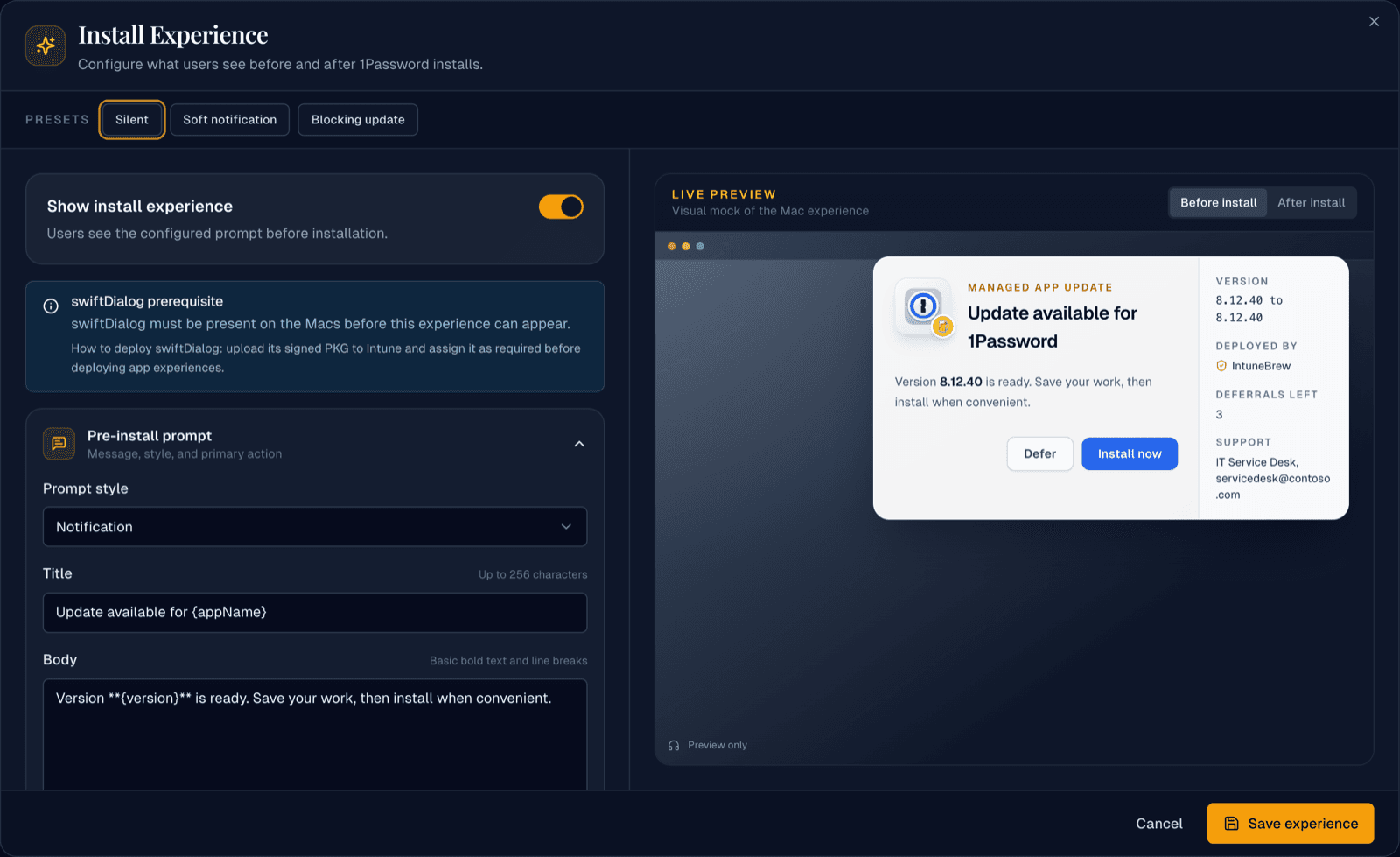
- Pick a preset to start from: Silent, Soft notification or Blocking update, and switch on Show install experience.
- Adjust the sections; the Live preview shows what users will see:
- Pre-install prompt: style (Notification or Blocking), title, body and button label.
{appName},{version}and{publisher}are replaced with the app's details. Optionally link to release notes. - Deferrals and timing: allow deferrals, the maximum number, whether to install anyway after the last one (Force at maximum), and what happens when the timer runs out (Proceed or Defer).
- Post-install notification: a completion message that closes after a few seconds.
- Support and branding: use your default support contact or set one for this app.
- Pre-install prompt: style (Notification or Blocking), title, body and button label.
- Select Save experience.
- Deploy or update the app again. The card shows Redeploy to apply until you do.
Saving doesn't change anything in Intune. The prompt is added to the app the next time it's deployed or updated.
Good to know
- Only PKG apps are supported; DMG apps show PKG required.
- Changing the experience requires the owner or administrator role.
- Test on a pilot Mac before using a Blocking style broadly.