 IntuneBrew
Deploy your first app
Upload a macOS app from the IntuneBrew catalog to Intune, follow its progress, and assign it to your users.
Deploying an app creates a new macOS app in Intune with the installer, name, publisher, icon and detection settings already filled in. You need the IntuneBrew owner or administrator role; viewers can browse but not deploy.
1. Find the app
Open Deploy apps in the portal sidebar. Search by name, publisher or description, or browse by category.
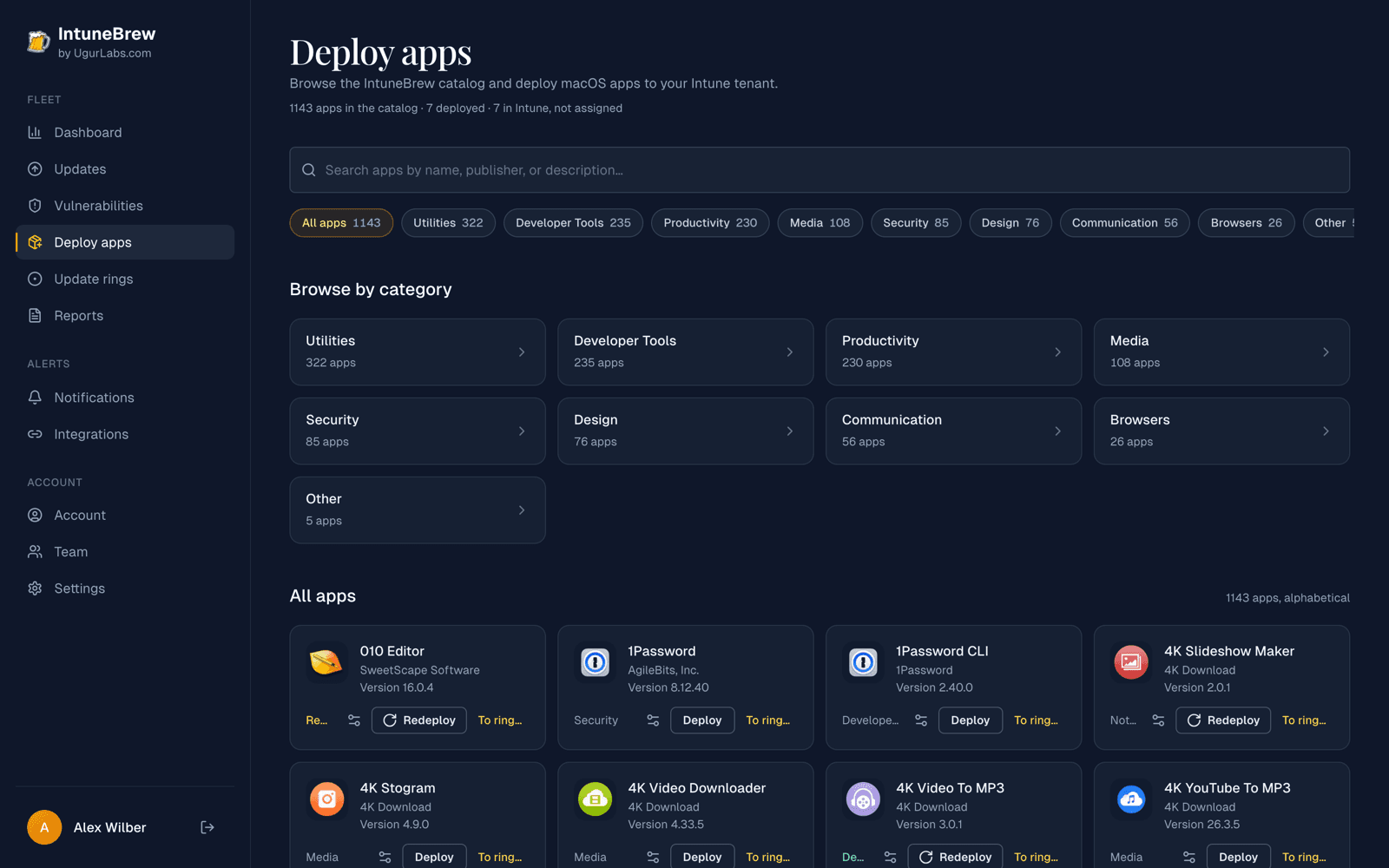
Each card shows the catalog version and, for apps you already have, a status:
| Status | Meaning |
|---|---|
| Deployed | The app is in Intune and assigned to at least one group. |
| Not assigned | The app is in Intune, but nobody receives it yet. |
| Install prompt on | An install experience is configured. |
| Redeploy to apply | The install experience changed; deploy again to apply it. |
Can't find an app? Request it.
2. Deploy it
Select Deploy on the app's card (Redeploy if it's already in Intune) and confirm.

A fresh deployment has no assignments, so nothing is installed on Macs yet. To assign it right away instead, cancel and use To ring… (see step 5).
3. Follow the progress
The Uploading to Intune window shows each app moving through four stages: Setup, Download, Package and Upload.

- Select Minimize to keep working; a progress button stays in the corner, and the upload continues even if you refresh the page.
- Cancel upload stops an app that hasn't finished.
- Most uploads finish in one to three minutes. Very large installers take longer.
When it's done, the app shows Uploaded successfully with a View in Intune link.
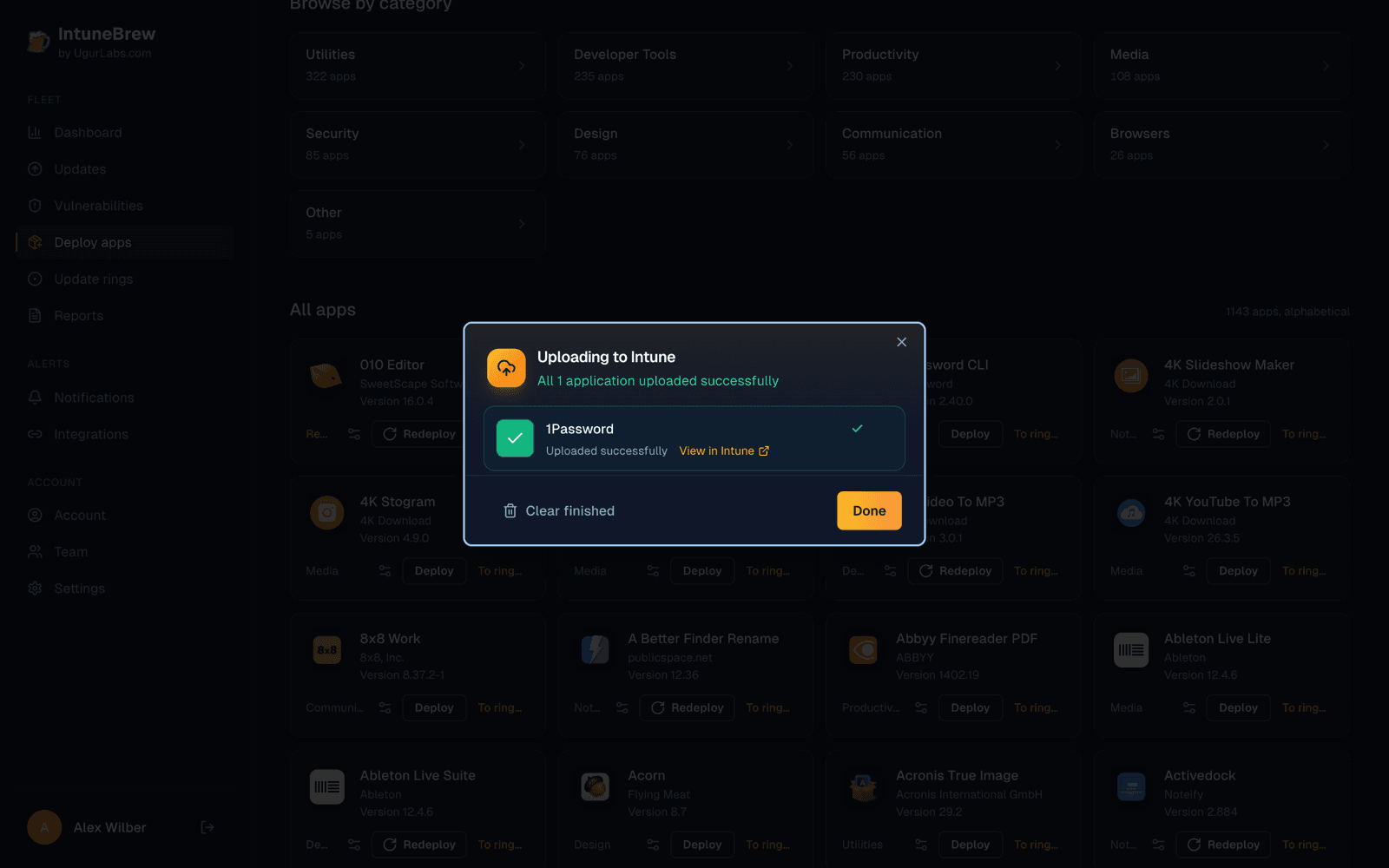
If an upload is blocked or fails, the window explains why and offers the next step, such as Sign in again or Retry upload. See Troubleshooting.
4. What IntuneBrew created
In the Intune admin center under Apps → macOS you'll find a new app with:
- the catalog's display name, version, publisher, description and icon
- the installer as a PKG or DMG app, with the bundle ID and version Intune uses to detect it
- macOS 11 as the minimum operating system
- the scope tags from your settings, if any
5. Assign the app
Choose one:
- In Intune: open the app → Properties → Assignments and add groups as usual.
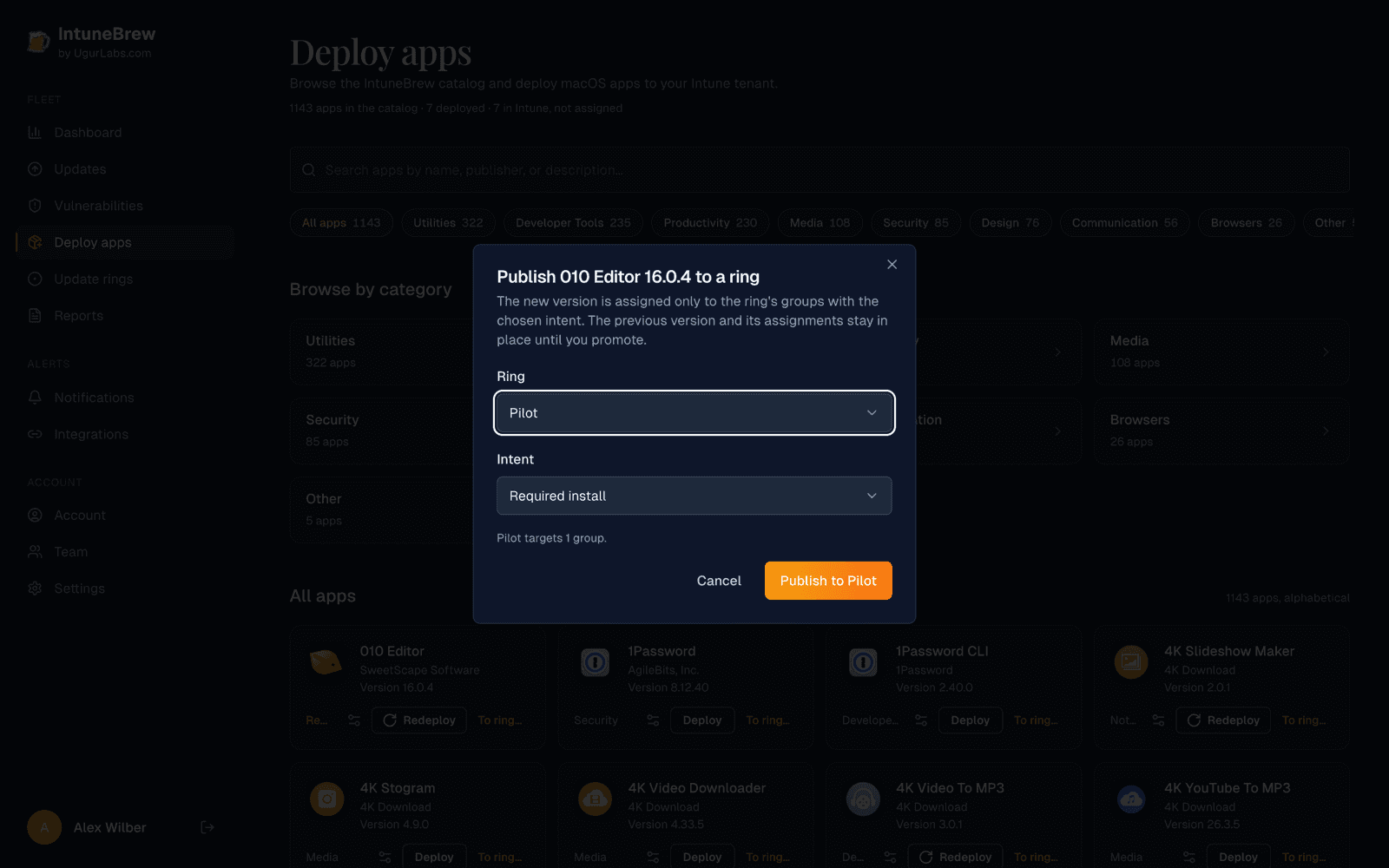
- With a ring: select To ring… on the app's card instead of Deploy. Pick an update ring and whether the app is Required or Available in Company Portal, and the new app is assigned to that ring's groups as part of the upload.
Other ways to deploy
- From the public app catalog: select Upload on an app, or select several app icons and Upload n apps. These start right away, without a confirmation step.
- From the dashboard: apps that are installed on your Macs but not deployed through IntuneBrew have a Deploy button.
- With the PowerShell tool:
IntuneBrew -Upload google_chrome.